
Kolotibablo Bot plugin installation for Google Chrome and Opera Browser from CRX file
Kolotibablo Bot plugin installation instructions for Google Chrome, Opera Browser in manual mode using CRX file format with screenshots
This is one of the two possible Kolotibablo Bot plugin install options for Google Chrome and Opera. On the page Plugin for Windows and Linux in Google Chrome and Opera you can read about all the variants and their benefits and flaws.
For the browser extension installation please follow instructions below:
0) Attention for Windows and MasOs users! Due to Google Chrome extension policy for normal installation and operation you need set following directives ExtensionInstallWhitelist and ExtensionInstallSources into browser policy options.
Please set values poaccciooiiejhnllapopnajlbnhdmen for ExtensionInstallWhitelist and https://antcpt.com/* for ExtensionInstallSources respectively.
For Windows users we created a specail REG file which you need to download, run and accept a change request. This file does everything automatically by writing above values to the registry. All you will have to do — restart the browser.
Download REG file for Kolotibablo Bot registration plugin in registry
After correct registration you can see these directives in the browser Policies page chrome://policy/ .
You need to restart the browser for the changes to take effect
0.5) For installing please enable "Developer mode" in the chrome://extensions/ pannel to prevent CRX_REQUIRED_PROOF_MISSING error. You can disable it afterwards.
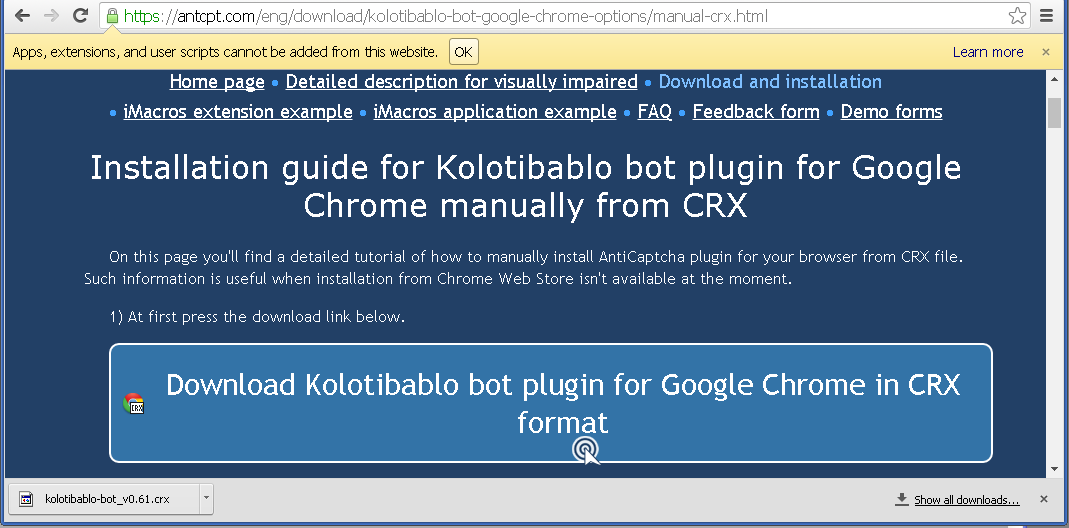
1) At first press the download link below.

 Download Kolotibablo bot plugin for Google Chrome in CRX format
Since the extension is downloaded not from official Chrome source, it won't be installed automatically.
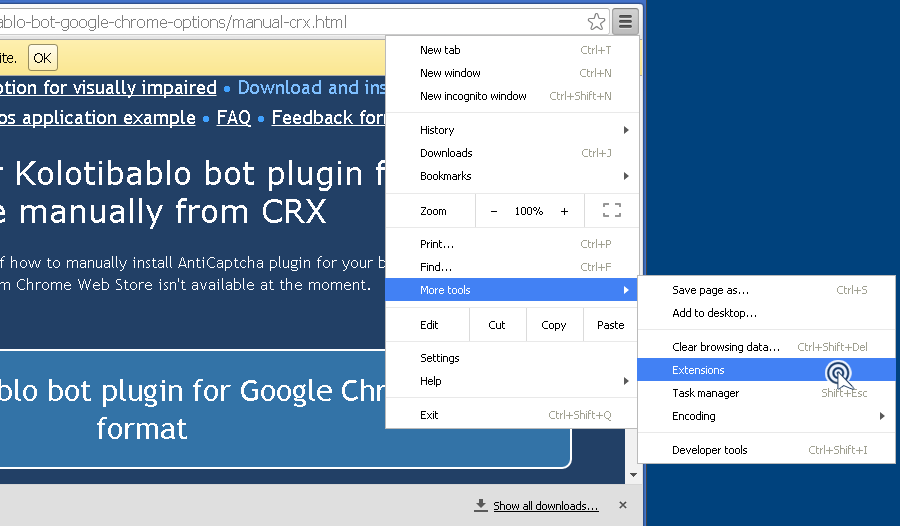
2) Please open an Extensions panel as it shown in the picture below.
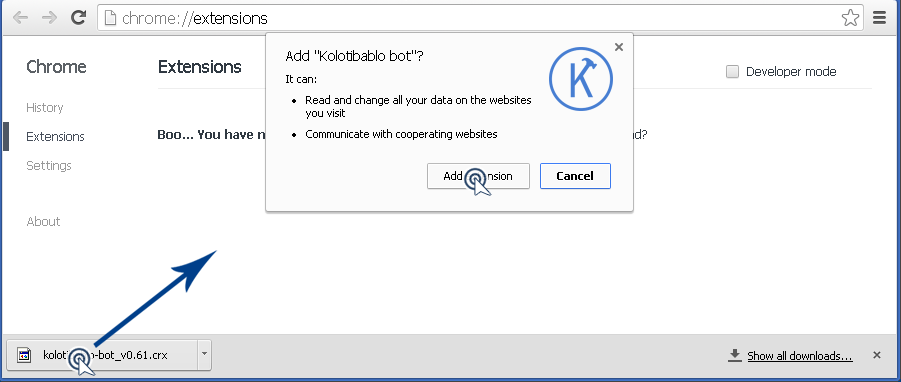
3) Now drag the file of plugin downloaded earlier in any area of a panel.
If current plugin was already installed you should remove its old version in the first place by pressing a trash icon next to extension.
Confirm Kolotibablo bot plugin installation by preessing "Add extension".
Congratulations, the plugin is successfully installed.
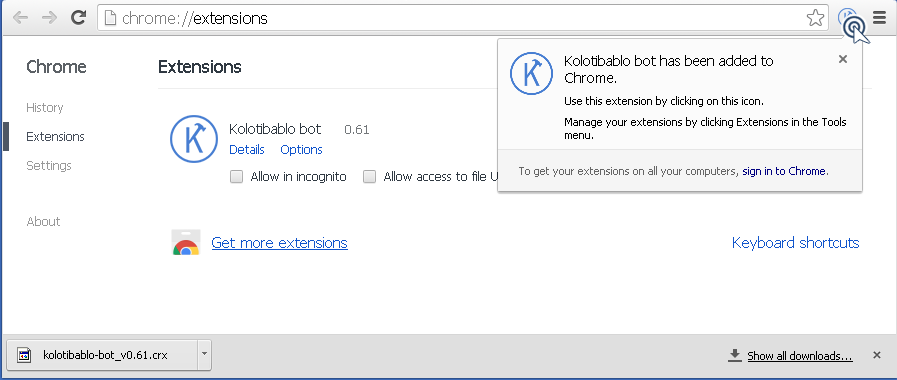
Press Kolotibablo bot icon to see options window. Usually there is no need to modify these settings.